Help your child stay focused and safe online with this powerful iPhone feature
Raising kids in the digital age can feel overwhelming. Between screen time limits, social media trends, and the never-ending stream of apps, many parents are left wondering if they’re doing enough. Or worse, if they’re already too late. If you’re looking for a simple and effective iPhone parental control, look no further than Assistive Access. This hidden feature helps parents limit screen time and restrict app access without removing the phone entirely. It’s a smart way to balance digital independence and online safety and that a simple feature on your child’s phone could change everything.
This week, a parent from a parenting group shared a brilliant discovery. They were dealing with a teenager who couldn’t seem to put the phone down, even with screen time settings in place. Their younger child also needed to stay in touch for safety reasons but wasn’t ready to be exposed to the wider world of digital content.
The solution? A lesser-known iPhone feature called Assistive Access.
What Is Assistive Access?
Assistive Access is a built-in accessibility tool for iPhone users. While it was originally designed for users with cognitive or motor impairments, it has found a new fanbase among digital parents who want more control over their children’s screen experience.
When enabled, this feature allows you to:
- Choose exactly which apps can be used
- Block access to every other app unless a special passcode is entered
- Prevent links from opening inside messages or browsers
- Limit communication to approved contacts only
Is Assistive Access Only for iPhones?
Yes. Assistive Access is currently available only on iPhones and iPads running iOS 17 or later. It was originally designed as an accessibility feature but has quickly become a powerful parenting tool.
If you’re using an Android device, there’s no exact equivalent to Assistive Access, but there are some very good alternatives.
Here are a few Android-friendly options:
- Google Family Link: Lets parents manage screen time, approve or block apps, and monitor activity. It’s great for both kids and teens.
- Samsung Kids Mode: Creates a child-safe environment on Samsung devices with locked access to selected apps.
- Digital Wellbeing & Focus Mode: Built into most Android phones, these features let you set limits, reduce distractions, and pause apps during certain hours.
- Third-party apps like Kids Place, Qustodio, and Norton Family offer advanced monitoring and app control options.
While Android doesn’t have a single feature that works quite like Assistive Access, combining these tools can give you strong control and peace of mind.
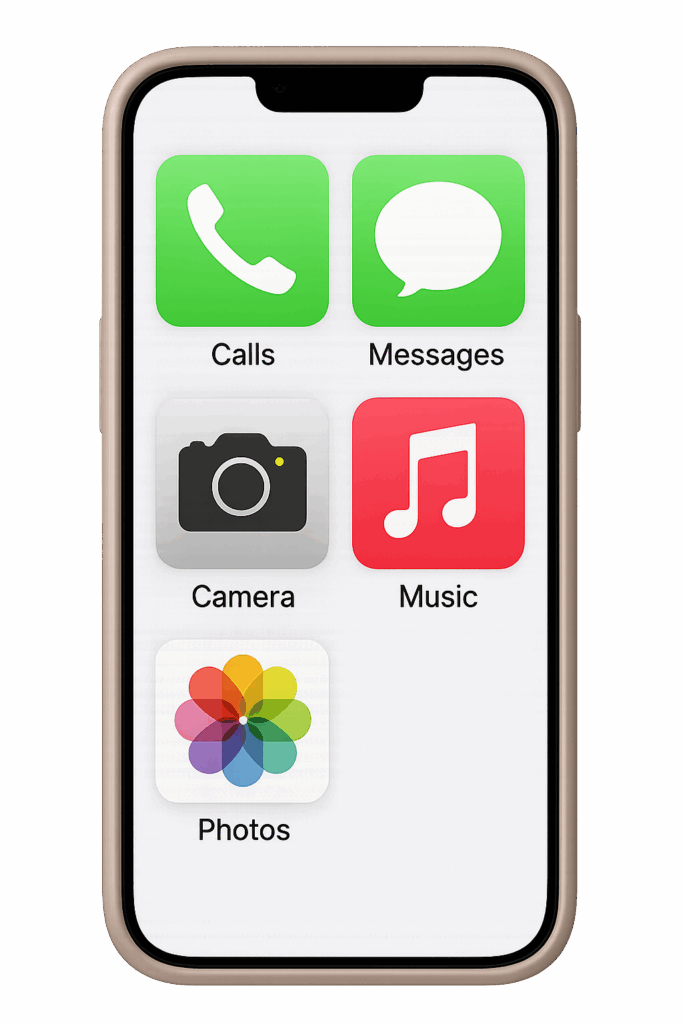
Imagine a phone that only shows Calls, Messages, Calendar, and one or two school-related apps. No YouTube. No Safari. No random app downloads or sneaky detours to TikTok.
For parents dealing with smartphone dependency or sneaky workarounds, this can be a real game changer.
Why This Matters
We often talk about boundaries, limits, and digital balance, but the truth is, most parental controls don’t go far enough. Smart kids find loopholes. Busy parents don’t always have the time or tech knowledge to monitor everything.
That’s where Assistive Access steps in. It simplifies the interface, locks everything else behind a passcode, and gives you peace of mind. It also respects your child’s need for essential tools like school calendars, job apps, or messaging — without giving them unlimited access to digital distractions.
But technology alone is not the solution. It’s just one part of a much bigger conversation we need to be having with our children.
Talk First. Lock Later.
As a digital parenting coach and author, I always recommend leading with communication, not control.
Before you activate any settings or restrictions, sit down with your child. Let them know you’re not doing this because you don’t trust them. You’re doing it because you care deeply about their focus, their mental health, and their future.
Explain that Assistive Access is a tool to help them succeed, not a punishment. Show them how it works. Involve them in the setup process if possible.
And most importantly — make a plan together.
Use a Family Tech Contract
One of the most effective tools you can use in your home is a digital agreement between you and your child. It outlines expectations, responsibilities, and consequences — in a calm, collaborative way.
That’s why I created a full set of Online Safety Contracts for families. These are not dry legal forms. They’re practical, conversation-starting tools that you can use to:
- Set daily screen limits
- Agree on acceptable app usage
- Outline clear rules for communication and privacy
- Decide together what happens when rules are broken
You can download these contracts instantly and start using them today. They’re a small investment that can prevent huge issues later.
👉 Grab the Online Safety Contracts here
Join the Community: Keeping Families Safe on Social Media
You don’t have to navigate this journey alone. Every week, I host discussions, share new tools, and offer support in my Facebook community: Keeping Families Safe on Social Media.
This is a space for parents who want real answers — not just scare tactics or outdated advice.
Inside the group, you’ll find:
- Practical tools for digital parenting
- Stories from other parents navigating the same struggles
- Weekly tips and step-by-step guides
- A safe space to ask questions and share experiences
You’re welcome to invite a friend or fellow parent who might benefit. We rise better together.
Need a Deeper Guide? Read the Book.
If you’re feeling unsure about how to start this conversation with your child — or overwhelmed by the sheer number of apps, platforms, and risks out there — I wrote something for you.
My book, Keeping Families Safe on Social Media, is a compassionate and practical guide for modern parents. It walks you through:
- Understanding the platforms your child is using
- Recognizing red flags and risky behavior
- Setting up age-appropriate limits
- Having powerful, open conversations about online life
- Building digital confidence as a parent
It’s not about fear. It’s about equipping you with the tools and language you need.
Small Actions Create Big Safety
No app, setting, or parental control will ever replace your presence as a parent. But tools like Assistive Access, combined with clear communication and healthy boundaries, can make your job easier.
So if your child has a phone, now is the time to:
- Review their app usage
- Explore settings like Assistive Access
- Download your Online Safety Contract
- Join the community
- Start a conversation that builds trust and accountability
How to Set Up Assistive Access on iPhone
Setting up Assistive Access is simple once you know where to look. On your child’s iPhone, go to Settings > Accessibility > Assistive Access. You’ll be guided through a setup process where you can:
- Choose which apps are available on the home screen
- Set a passcode to lock the device into this mode
- Limit messages and calls to approved contacts
- Prevent access to links, browsers, or app switching
Once Assistive Access is active, the iPhone becomes a focused tool instead of a constant distraction. Your child will only see the apps you’ve approved, and they won’t be able to exit the mode without the passcode you set. It’s an excellent way to support screen balance, especially when paired with a family tech contract.
You don’t have to be perfect. You just have to be proactive.
Let’s protect our children’s minds and futures — one smart decision at a time.
Your next step
👉 Download your Online Safety Contract Toolkit
👉 Join the Facebook page: Keeping Families Safe on Social Media
👉 Get the book: Keeping Families Safe on Social Media
We’re building safer digital homes — and it starts with you.